Archives and History
Archives and History is used to save the current project state, inspect archived versions, and restore a selected version when needed.
Entry
In the workspace toolbar, click "Archives and History" to open the history dialog.
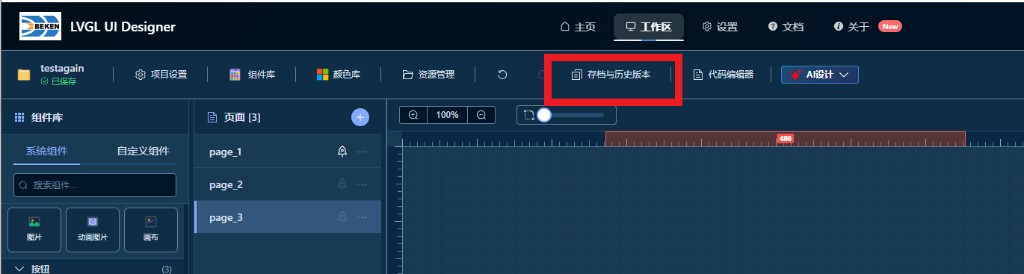
Create an Archive
Save the current version: 1. Click "Archives and History" in the toolbar 2. Select "Current Version" on the right side of the dialog 3. Click "Archive" to save the current project state
After the archive is created, the button in the Current Version card changes to "Archived" and stays disabled until the dialog is closed, preventing duplicate archives with the same content.
View Archived Versions
Inspect a saved version: 1. Select an archive from the "Archived Versions" list on the right 2. Use the page list on the left to switch between pages in that version 3. The center preview area shows the visual result of the selected page
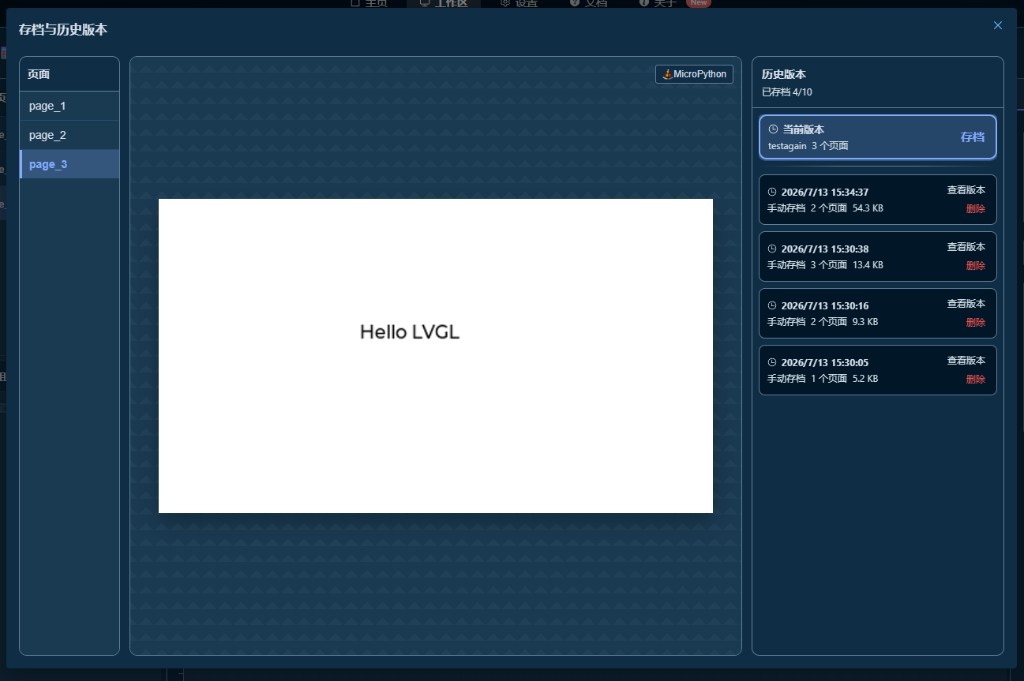
Run MicroPython Preview
In the history dialog, click the MicroPython button in the upper-right corner of the preview area to generate and run MicroPython based on the currently displayed version.
Restore an Archived Version
Restore to a selected version: 1. Select the archived version you want to restore 2. Click "Restore to This Version" 3. Confirm the operation in the confirmation dialog
After restoration, the current project content is replaced by the selected archived version. Existing archives are kept and will not be deleted by the restore operation.
Note: The number of archived versions is limited. When the limit is reached, delete an old version before creating a new archive.
Workspace Docs: ← Back to Workspace | Toolbar | AI Design